Setting up SeniorsLink
It takes about ten minutes, and you don't need any tech experience. You'll do most of it on your own phone, then spend two minutes on the tablet your loved one will use. You can redo any step later — nothing here can break anything.
📱 On your phone — steps 1–5🖥️ On the tablet — steps 6–7
Prefer to watch it first?
Two short videos — under a minute each — showing the whole thing, start to finish.
Read the transcript
This is the part you do — and it takes about five minutes. Start with who they are — their name, their year, and home. Add someone she can call. One tap — no numbers to remember. Then a first photo. A face she loves works best. Name her companion — something that feels like a friend — and leave a gentle note for her morning. And that's it. Everything you just added is already on her tablet. Five minutes for you — a warmer day for her.
Read the transcript
The whole family can be part of this — start by typing their email. One tap makes a private link — send it by text or email, and they're in. Now for the tablet — ask for a pairing code. Eight characters, just for you, good for ten minutes. On her tablet, type the code in — once. That's all it ever asks of her. And there she is — good afternoon, Margaret. From now on, everything the family adds simply appears.
On your phone
Set everything up from the phone in your pocket.
Get the SeniorsLink Family app
This is the app you use to set things up and send photos, messages, and reminders. Install it on your own phone — and any other family member who wants to help can install it on theirs too.
The App Store and Google Play versions are on the way. For now, open the link above in your phone’s browser — it works exactly the same.
1
Create your account
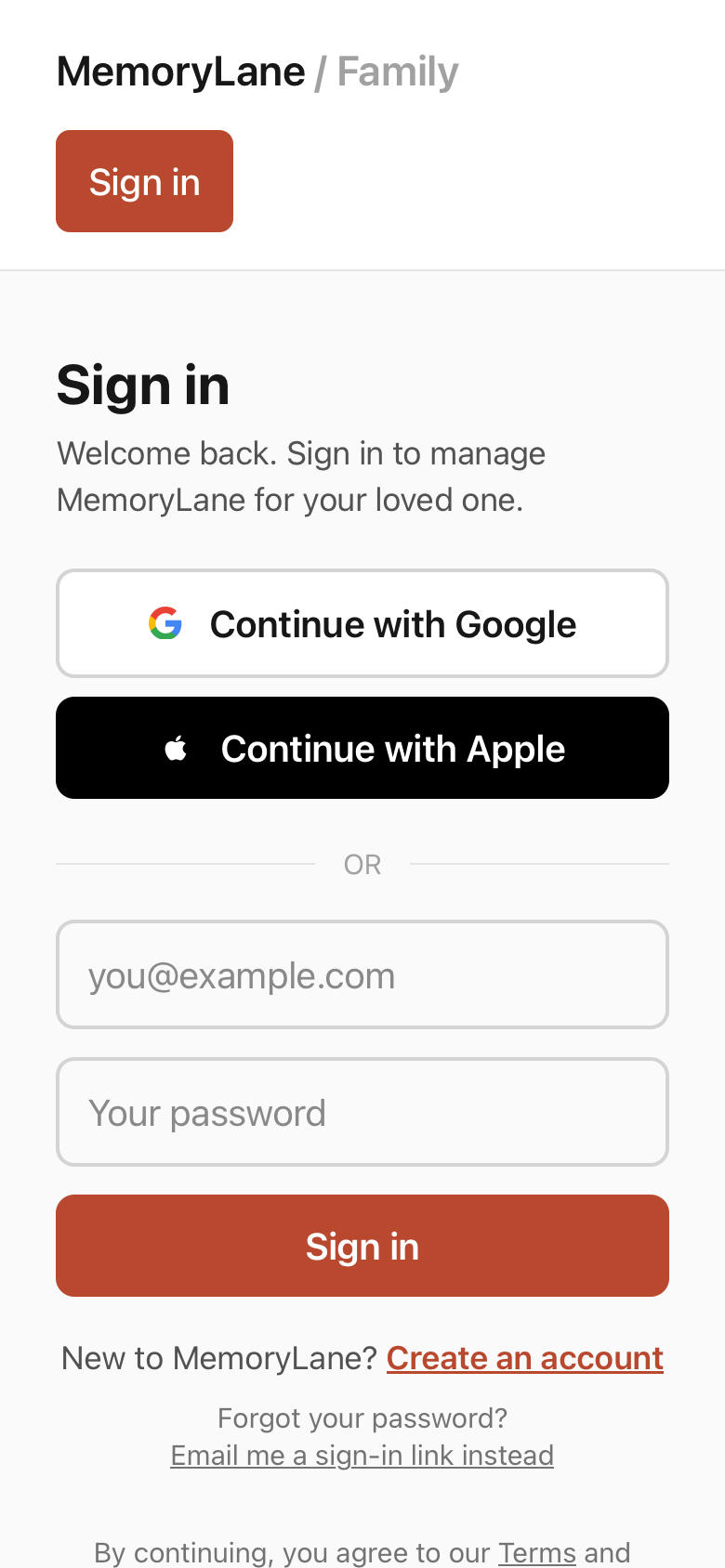
Open SeniorsLink and tap Create an account. Use Google, Apple, or just an email and password — whichever is easiest. This is your private caregiver account; your loved one never has to sign in to anything.
2
Find your home base
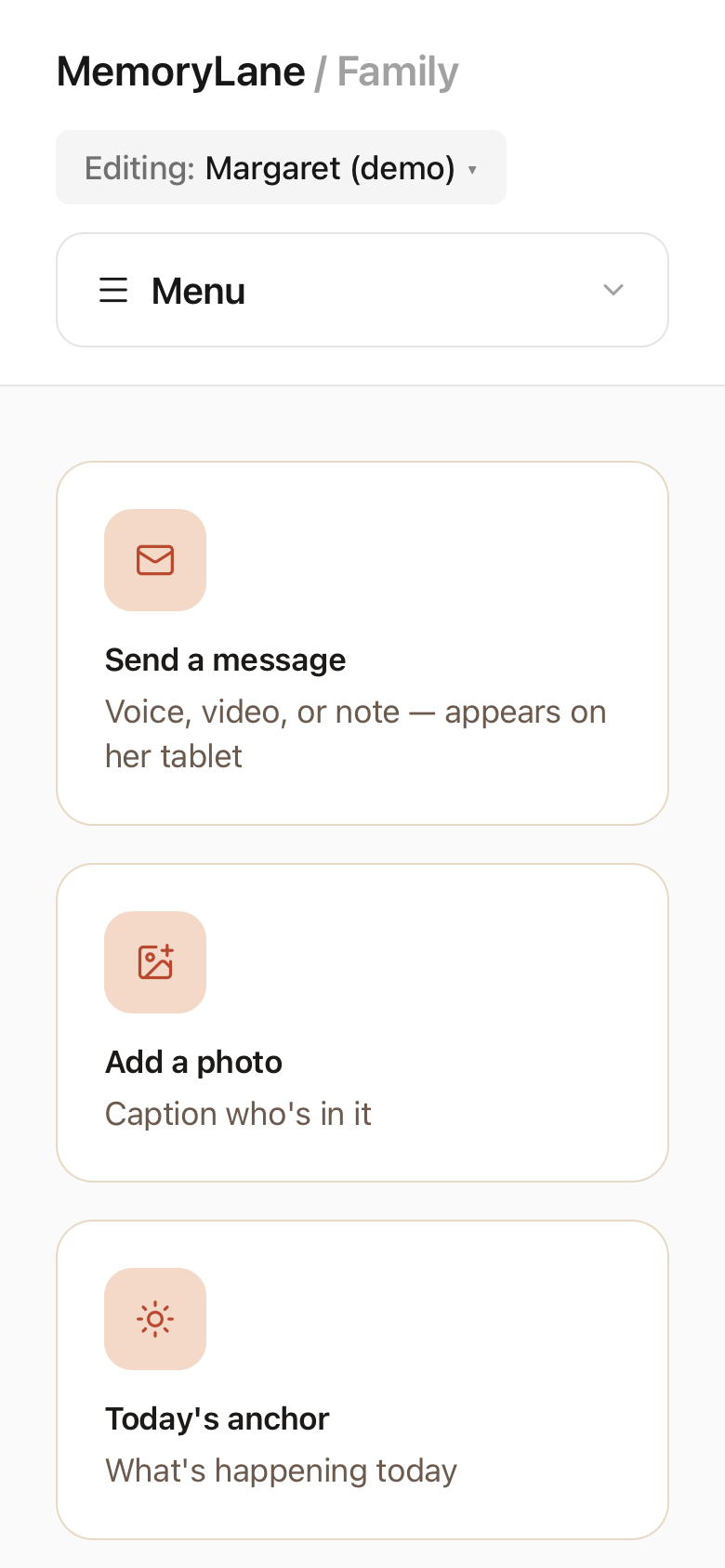
After signing in you land on your dashboard. Everything you send — a photo, a message, a reminder — starts from one of these big buttons. You can always come back here by tapping Home.
3
Tell us about them
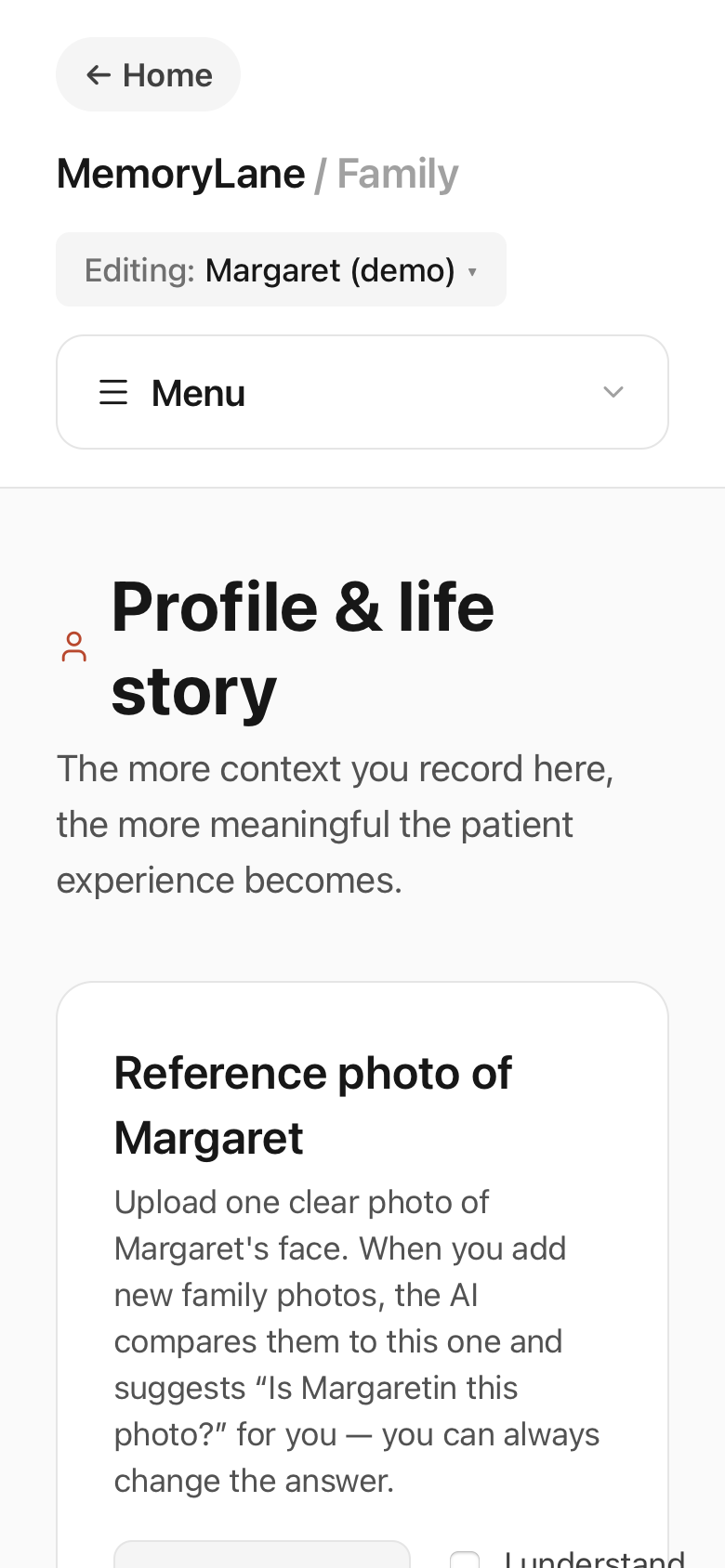
Tap Profile and fill in their name, where they grew up, and a few notes about their life. The more you add, the warmer and more personal their companion sounds. Set “How much support do they need?” — leave it on Independent if they're doing well day to day.
4
Add a photo or a message
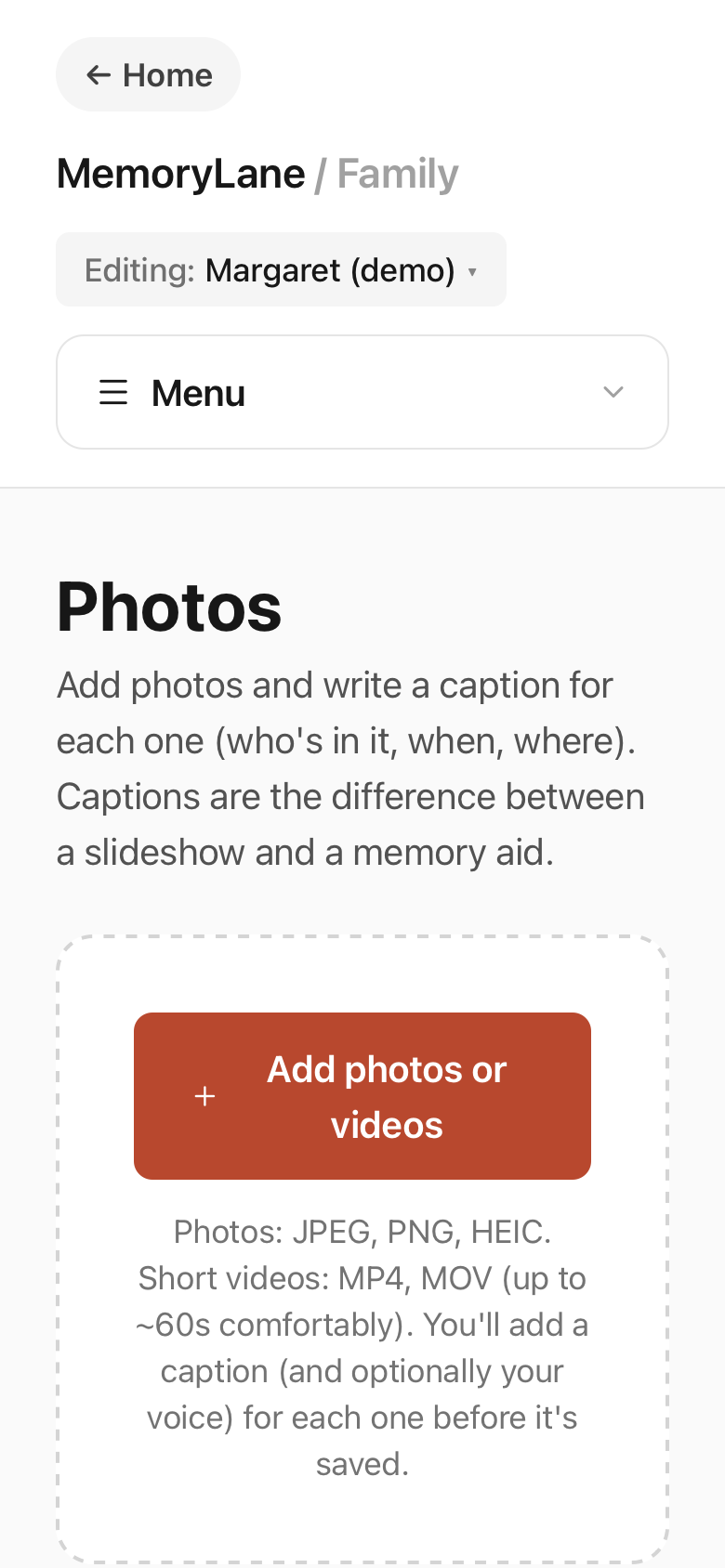
Tap Photos to add family pictures — write or speak a caption like “You and Dad at the lake.” Or tap Messages to record a quick voice note. These appear gently on their tablet through the day, so the house feels a little less empty.
5
Pair the tablet
Tap Pair tablet. You'll see an 8-character code like the one shown here. Keep this screen open — you'll type the code into the tablet in the next step. If it runs out, just tap to make a new one.
SeniorsLink / Pair
Pair a tablet
On the tablet, open your SeniorsLink URL and enter the code below.
K7P2M9X4
Expires in 9:54
On the tablet
Now pick up the iPad your loved one will use. Just two steps.
Get the SeniorsLink tablet app
On the iPad your loved one will use, install the tablet app — this is the calm, single-screen home they'll see. They never sign in or set anything up; you pair it in the next step.
The App Store and Google Play versions are on the way. For now, open the link above in the tablet’s browser — it works exactly the same.
6
Enter the code on the tablet
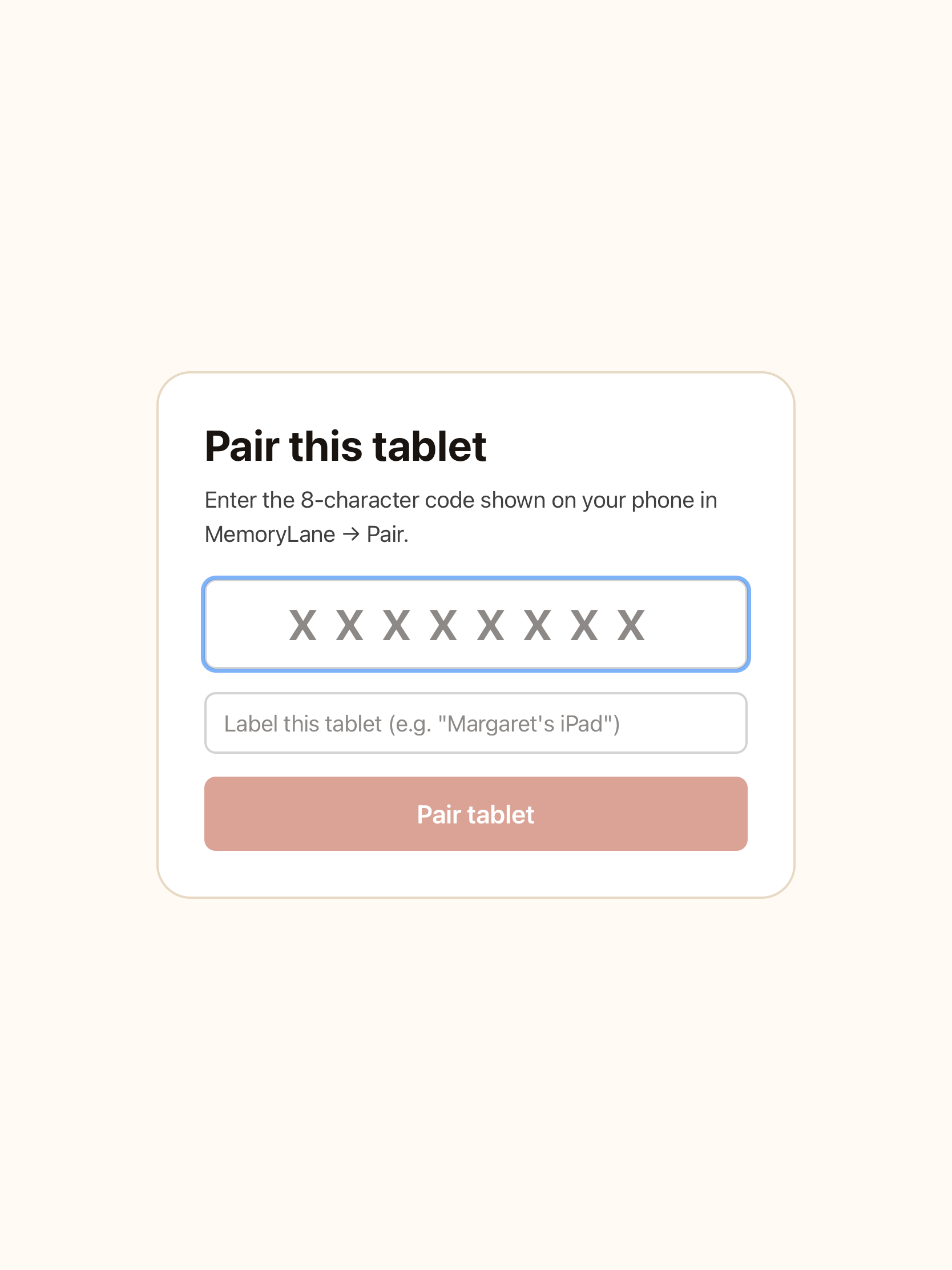
On the tablet, open seniorslink.ca/pairin the browser — the same address your phone shows on the pairing screen. (If you installed the tablet app instead, opening it for the first time takes you straight there.) You'll see Pair this tablet: type the 8-character codefrom your phone, give the tablet a name like “Mom's iPad,” and tap Pair tablet. That links the two together.
7
That's it — here's what they'll see
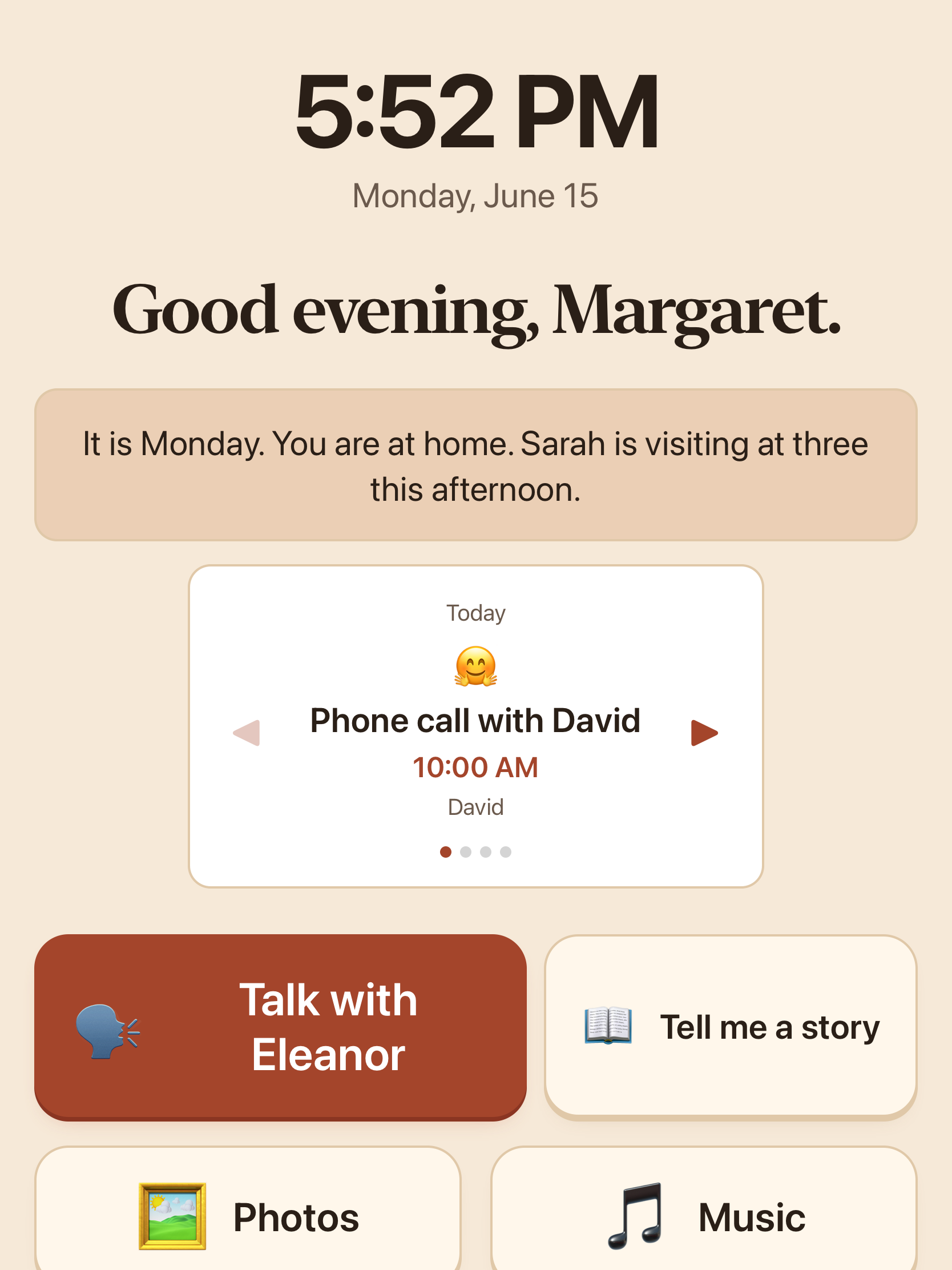
The tablet now shows your loved one's home screen: the time, a warm greeting, what's happening today, and big, simple buttons for photos, music, and talking with their companion. Everything you send from your phone appears here automatically. Stand the tablet up, keep it plugged in, and you're done.
Stuck on a step?
Nothing here is permanent — you can change any detail, add more photos, or pair the tablet again at any time. Take your time. If you want a hand, email hello@seniorslink.ca and a real person will walk you through it.
Go to my dashboard →